
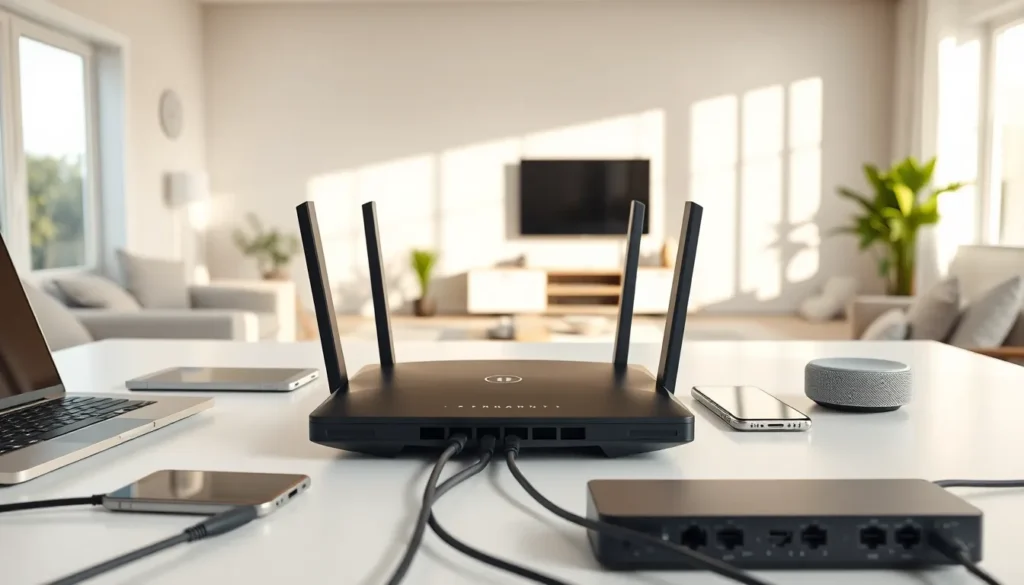

Home networking connects all the devices in a household to share internet access, files, and resources. The average home now contains over 20 connected devices, from smartphones and laptops to smart TVs and thermostats. A well-designed home network keeps these devices running smoothly and securely.
This guide covers everything needed to build a reliable home network from scratch. It explains the core components, walks through setup steps, and shares tips for better performance and security. Whether someone is setting up their first router or upgrading an existing system, this information will help create a fast, stable connection throughout the home.
Table of Contents
ToggleKey Takeaways
- A reliable home networking setup starts with a centrally placed router, a modem, and the right cables—most households can complete the setup in about 30 minutes.
- Invest in a dual-band or tri-band Wi-Fi 6 router for faster speeds and better handling of 20+ connected devices.
- Use mesh systems instead of basic extenders to eliminate Wi-Fi dead zones in larger homes for seamless coverage.
- Secure your home network by enabling WPA3 encryption, changing default credentials, and creating a separate guest network for IoT devices.
- Optimize performance by connecting stationary devices via Ethernet and using the 5 GHz band for nearby wireless devices.
- Regularly update router firmware to patch security vulnerabilities and improve overall network performance.
Understanding Home Network Basics
A home network is a system that links computers, phones, tablets, and smart devices so they can communicate with each other and access the internet. Two main types exist: wired and wireless.
Wired networks use Ethernet cables to connect devices directly to a router. These connections offer faster speeds and more stability than wireless options. They work best for desktop computers, gaming consoles, and streaming devices that stay in one place.
Wireless networks (Wi-Fi) transmit data through radio waves. They provide flexibility since devices can connect from anywhere within range. Most home networking setups combine both wired and wireless connections.
The router sits at the center of every home network. It directs traffic between devices and the internet, assigns IP addresses, and manages connections. Modern routers also include built-in security features like firewalls.
A modem connects the home network to the internet service provider (ISP). Many ISPs now offer combination modem-router units, though separate devices often perform better. Understanding these basics makes setting up and troubleshooting a home network much easier.
Essential Equipment for Your Home Network
Building a solid home network requires the right equipment. Here’s what most households need:
Router: The router is the most important piece of home networking equipment. Look for a dual-band or tri-band router that supports Wi-Fi 6 (802.11ax) for faster speeds and better performance with multiple devices. Budget routers cost $50-100, while high-end models run $200-400.
Modem: A modem connects to the ISP and brings internet into the home. DOCSIS 3.1 modems support gigabit speeds and work with most cable providers. Buying a modem instead of renting saves money over time, typically $10-15 per month.
Ethernet cables: Cat6 or Cat6a cables handle speeds up to 10 Gbps over short distances. Keep several on hand for wired connections to stationary devices.
Network switch: Homes with many wired devices may need a network switch to expand available Ethernet ports. An 8-port gigabit switch costs around $20-30.
Wi-Fi extenders or mesh systems: Large homes often struggle with Wi-Fi dead zones. Mesh systems like those from Eero, Google Nest, or TP-Link create seamless coverage across multiple floors or rooms. They cost more than simple extenders but deliver better results for home networking.
Surge protector: Protect network equipment from power spikes with a quality surge protector. A single lightning strike can destroy a router and modem instantly.
Setting Up Your Home Network Step by Step
Setting up a home network takes about 30 minutes with the right preparation. Follow these steps:
Step 1: Position the router centrally
Place the router in a central location, elevated off the floor. Avoid closets, corners, and areas near microwaves or cordless phones, these interfere with Wi-Fi signals.
Step 2: Connect the modem
Plug the modem into the coaxial or fiber connection from the ISP. Connect the modem to the router using an Ethernet cable. Power on both devices and wait 2-3 minutes for them to fully boot.
Step 3: Access the router settings
Open a web browser and type the router’s IP address (usually 192.168.0.1 or 192.168.1.1). Log in with the default credentials printed on the router or in its manual.
Step 4: Configure the network name and password
Change the default network name (SSID) to something recognizable. Create a strong password with at least 12 characters, mixing letters, numbers, and symbols. This secures the home network from unauthorized access.
Step 5: Update the firmware
Check for router firmware updates and install them. Manufacturers release updates to fix security holes and improve performance.
Step 6: Connect devices
Connect wired devices first using Ethernet cables. Then add wireless devices by selecting the network name and entering the password. Most home networking setups support dozens of simultaneous connections.
Improving Wi-Fi Coverage and Performance
Slow Wi-Fi frustrates everyone. These strategies boost home network performance:
Choose the right frequency band
Most routers broadcast on 2.4 GHz and 5 GHz bands. The 2.4 GHz band reaches farther but runs slower. The 5 GHz band offers faster speeds over shorter distances. Connect nearby devices to 5 GHz and distant devices to 2.4 GHz.
Change the Wi-Fi channel
Neighboring networks can cause interference. Use a Wi-Fi analyzer app to find less congested channels. Channels 1, 6, and 11 work best for 2.4 GHz networks since they don’t overlap.
Upgrade to a mesh system
Mesh systems place multiple access points throughout the home. They hand off connections seamlessly as users move between rooms. A three-pack mesh system can cover 5,000+ square feet, perfect for larger homes struggling with home networking coverage.
Reduce interference
Keep the router away from metal objects, fish tanks, and thick walls. Bluetooth devices and baby monitors can also disrupt Wi-Fi signals.
Use Quality of Service (QoS) settings
QoS prioritizes bandwidth for specific applications or devices. Enable it for video calls, gaming, or streaming to prevent lag during important activities.
Consider powerline adapters
Powerline adapters send network signals through electrical wiring. They work well for connecting distant rooms where running Ethernet cables isn’t practical.
Keeping Your Home Network Secure
Home network security protects personal data and prevents unauthorized access. Hackers target poorly secured networks to steal information or use bandwidth for illegal activities.
Use WPA3 encryption
WPA3 is the latest Wi-Fi security standard. If devices don’t support WPA3, use WPA2 with AES encryption. Never use WEP, it’s easily cracked.
Change default login credentials
Rename the network and change the admin password immediately. Default credentials are publicly available online, making unsecured routers easy targets.
Enable the firewall
Most routers include a built-in firewall. Turn it on to block malicious incoming traffic. This provides a first line of defense for home networking security.
Create a guest network
Set up a separate guest network for visitors and IoT devices. This isolates smart home gadgets from computers and phones containing sensitive data.
Disable WPS
Wi-Fi Protected Setup (WPS) lets devices connect with a button push or PIN. Unfortunately, it creates security vulnerabilities. Disable it in router settings.
Update firmware regularly
Router manufacturers patch security flaws through firmware updates. Check for updates monthly or enable automatic updates if available.
Monitor connected devices
Review the list of connected devices in router settings periodically. Unknown devices may indicate a security breach. Most routers show device names and MAC addresses for identification.


